

Analytics and reports
The Analytics tab holds saved reports called analytics files (RT-n). Each file is a set of charts with its own filters, kept in folders like everything else in the app.
Create a report
Section titled “Create a report”- Open Analytics and click Create chart in the Analytics explorer (or use a folder’s menu). This creates an analytics file.
- Click Add charts and pick from the available chart types.
- Set Filters to choose which data the charts use: executions, status, priority, created by, executed by, tags and custom execution fields. Click Save filter to keep them with the file.
- Open Report settings for charts that need extra input (see below).
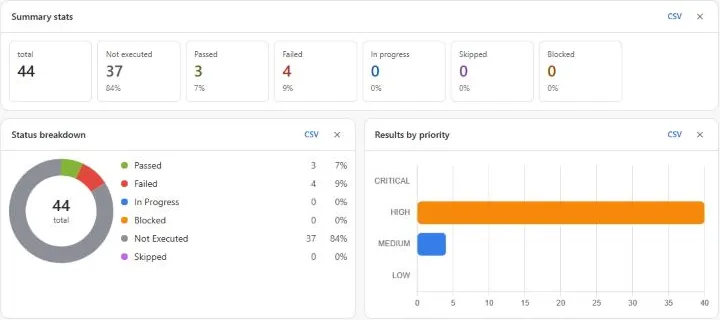
The AI assistant can build reports too, for example Create an analytics file “Release 2.4” with release readiness, coverage gaps and execution trend. It can also answer one-off questions such as Who executed the most tests this month? or What’s the pass-rate trend over the last 30 days?
Chart types
Section titled “Chart types”| Group | Charts |
|---|---|
| Overview | Summary stats, Story → test traceability, Execution details |
| Status | Status breakdown |
| Priority | Results by priority |
| People | Work by assignee |
| Release | Release readiness (go / no-go for a fix version), Coverage gaps, Traceability matrix |
| Execution | Execution trend (7, 30 or 90 days), Burndown, Execution comparison, Environment matrix |
| Quality | Flaky tests, Defect analytics |
| Team & time | Tester workload, Time tracking (estimated vs actual minutes) |
| Repository | Repository health (stale, never run and unlinked cases), Automation vs manual |
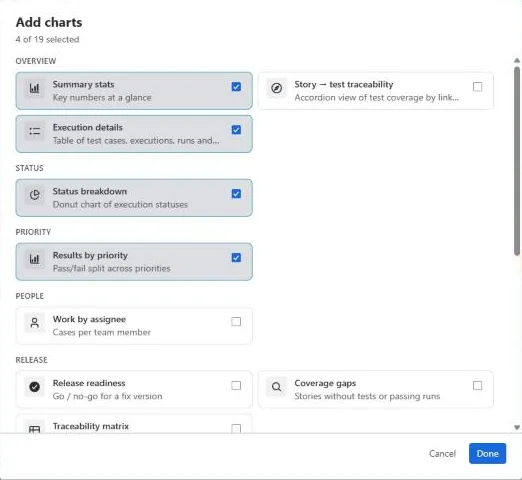
Execution details lists every test case with its priority, last run, number of runs, status and bugs; View run history shows each run. Traceability charts list each story with its linked tests and bugs.
Report settings
Section titled “Report settings”| Setting | Used by |
|---|---|
| Fix version (default: next unreleased version) | Release readiness, Coverage gaps, Traceability matrix |
| Trend window (7, 30 or 90 days) | Execution trend |
| Compare (base) and With (target) executions | Execution comparison |
| Burndown of executions or test plans, and a Target date | Burndown |
| Stale after (days without a run) | Repository health |
In very large projects, charts analyse the most recent rows and say so.
Export and share
Section titled “Export and share”- Export PDF or Print the whole report.
- Download any chart’s data as CSV.
- Copy link to share the report with anyone who can view the project.
Jira dashboard gadget
Section titled “Jira dashboard gadget”Add live results to a Jira dashboard:
- On a dashboard, click Add gadget and choose AssertThat test reports.
- Pick the Project and a Report:
- Release readiness (fix version): coverage, pass rate, executed and open defects, with a verdict;
- Execution progress: progress, pass rate, failed and blocked for one execution;
- Requirement coverage: requirements covered and passing, failing and uncovered.
- Choose the execution or fix version (Next unreleased version or All linked requirements).
Confluence macro
Section titled “Confluence macro”If the app is also installed in Confluence on your site, insert the AssertThat test report macro on any page. Choose the Jira project and the report: the three gadget reports, or a saved Analytics file. Release notes and sign-off pages stay up to date without copy and paste.
JQL functions
Section titled “JQL functions”Two JQL functions let you search Jira issues by test results, in filters, boards and dashboards:
issue in atmCoverage("FAILING")issue in atmCoverage("UNCOVERED") AND fixVersion = "2.4"issue not in atmCoverage("PASSING")issue in atmDefects()atmCoverage(state)returns requirements in a coverage state:UNCOVERED,FAILING,PASSING,NOT_RUNorIN_PROGRESS.atmDefects()returns issues raised or linked as defects from test runs.
Results refresh after changes and every hour, so they can lag briefly. Jira applies its usual permissions to the results.