

Test planning
A test plan is a reusable set of test cases, such as Smoke tests, Sprint 42 regression or Release 2.4 sign-off. You create executions from a plan to run it, as often as you need.
Create a test plan
Section titled “Create a test plan”- Open the Test planning tab.
- Click Create test plan in the Plan explorer (or in a folder’s menu).
- Enter a name. Optionally search for test cases, filter them by priority, and tick the ones to include. You can also create an empty plan and add cases later.
Plans live in folders, just like test cases. Use Create folder, drag plans between folders, and use Filters to find plans by folder name, plan name or tags.
Edit a plan
Section titled “Edit a plan”Open a plan to see its details:
- the name, a description and Tags;
- Assigned test cases, with a count. Add test cases opens a picker where you search and select more; remove a case with its remove button;
- Copy link to share the plan.
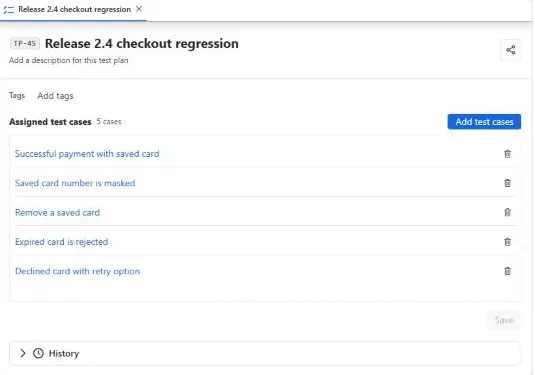
Click Save to keep your changes.
Other ways to fill a plan:
- select test cases in Test design and use the Add to test plan bulk action;
- ask the AI assistant, for example Create a test plan called “Sprint 42 Regression” with all critical test cases in /Checkout.
Clone, rename and delete
Section titled “Clone, rename and delete”From a plan’s row menu you can Rename test plan, Clone test plan (copies the plan with its test cases) or Delete test plan. Deleted plans go to Archived, where they can be restored.
Run a plan
Section titled “Run a plan”Create an execution of type From a test plan in the Execution tab and pick the plan. The execution gets the plan’s current test cases; later changes to the plan don’t change executions that already exist.