

Running tests
Open an execution, then click Run test case on a case (or open it from the explorer). The case opens in its own tab.
The run screen
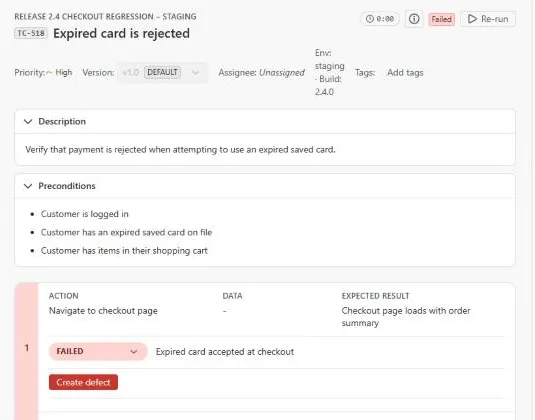
Section titled “The run screen”The header shows the case’s Priority, the Version being run (you can pick another), the Assignee, the execution’s environment and build, Tags, and a Run or Re-run button with a timer. The case’s description and preconditions sit above the steps, and Executing as shows who is recording the run.
Record results
Section titled “Record results”- Work through the step table. For each step, set the Step status and add a comment if needed. Shared steps from another test case are marked Shared step from TC-n.
- Set the Overall status: Passed, Failed, Blocked, Skipped, In Progress or Not Executed, plus any custom execution statuses.
- Add an optional overall comment.
- Time is tracked by the timer. To log time by hand, type the Minutes; leave it empty to use the timer.
- Click Save run.
When you fail or block a step, you’re offered a quick comment; choose Add comment or Skip comment.
Every save keeps its own run. Earlier runs stay in the case’s Execution history (Run #1, Run #2 and so on).
Keyboard shortcuts
Section titled “Keyboard shortcuts”Press ? on the run screen to see them all.
| Key | Action |
|---|---|
| P | Pass the focused step, or the whole case when no step is focused |
| F | Fail the focused step or case |
| B | Block the focused step or case |
| S | Skip the focused step or case |
| J / K | Focus the next / previous step |
| N | Open the next test case of the execution |
| D | Create a defect from the focused failed step |
| ? | Show or hide the shortcut help |
Shortcuts are ignored while you’re typing in a field.
Data-driven test cases
Section titled “Data-driven test cases”If the case has a dataset, the run shows Data iterations, one per data row, each with its own step statuses, actual result and comment. A combined result per step summarises all rows. You can raise a defect from any iteration.
Create a defect
Section titled “Create a defect”Click Create defect on a failed step to raise a Jira bug. It is pre-filled with the steps to reproduce, the expected and actual results, the environment and the build, and it is linked to the run and to the requirements the test case covers. The bug then shows in the issue panel’s Found in section and in defect analytics.
You can also link an existing issue to the run under Linked issues.
Attachments
Section titled “Attachments”Use Attach file to add screenshots, logs or videos to the run. Attachments can be previewed, downloaded and deleted, and the case’s own attachments are listed alongside. Files are stored in Atlassian’s Forge storage, up to 100 MB each by default. Wait for uploads to finish before you save the run.
Running with the AI assistant
Section titled “Running with the AI assistant”You can record results in plain language, for example Pass all steps of TC-14 in TE-7 or Fail TC-22 in the Release 2.4 execution with comment “500 on submit”. The assistant asks for anything it needs, such as which run, then records the result.