

Rovo, MCP and REST API
Rovo agent
Section titled “Rovo agent”AssertThat adds an AssertThat ATM agent to Atlassian Rovo. Open Rovo chat in Jira, choose the agent, and ask in plain language. Mention the project key in your request.
Try:
- Generate test cases for PROJ-123
- List all CRITICAL test cases in project DEMO
- Create a test plan called “Sprint 42 Regression”
- Show the latest execution run status in project MYAPP
- Generate Gherkin BDD scenarios for PROJ-123
- Is release 2.4 of project DEMO ready?
- Which test cases in project DEMO are duplicates?
The agent can work with test cases, BDD scenarios, test plans, executions and step results, analytics, reports, insights, history and archive, reviews, custom fields, exploratory sessions, tags and issue links. It follows the same permissions as the app, and its changes appear in the audit log with the source Rovo.
MCP for AI clients
Section titled “MCP for AI clients”AssertThat’s tools are also available over the Model Context Protocol (MCP), through Atlassian’s own MCP endpoint. AI clients such as Claude (Desktop, Code and claude.ai), Cursor and Codex can then read and write your tests, as you.
-
Site administrator: in Atlassian Administration › Apps › Connected apps, open AssertThat and enable Expose tools via external MCP endpoint.
-
Each user: add a remote (HTTP) MCP server in your AI client with this URL:
https://mcp.atlassian.com/forge/18c538b7-5ece-4d0f-af0f-e0daaec143a9For example, in Claude Code:
Terminal window claude mcp add --transport http assertthat-atm https://mcp.atlassian.com/forge/18c538b7-5ece-4d0f-af0f-e0daaec143a9 -
The first time you use it, your client opens the Atlassian sign-in and consent screen. Pick your site. From then on, every call runs as you, with your Jira permissions.
You can also add the AssertThat tools to custom agents in Rovo Studio.
Deletes through MCP archive items, so they can be restored. Changes are recorded in the audit log.
REST API
Section titled “REST API”Scripts and headless agents can queue changes with a personal API key.
Create a personal API key
Section titled “Create a personal API key”- Open your avatar menu › Personal settings › AssertThat API keys.
- Copy the API URL.
- Enter a label (for example MCP on my laptop), choose an expiry or No expiry, and click Create API key. The key starts with
atmu_and is shown only once.
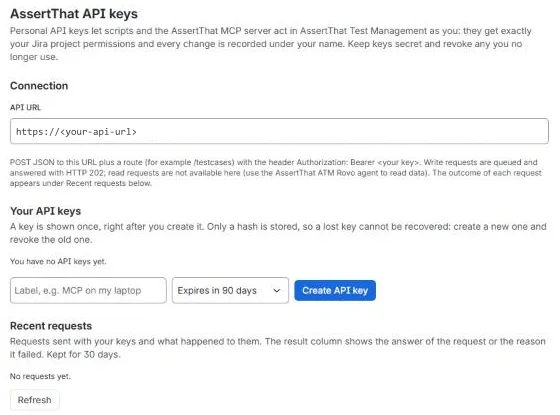
Keys act as you, with your permissions. You can revoke your keys at any time; Jira administrators can revoke any key from the global settings.
Make a request
Section titled “Make a request”Send a JSON POST to <API URL>/<route> with the key as a bearer token:
curl -sS -X POST "$ATM_API_URL/testcases" \ -H "Authorization: Bearer $ATM_API_KEY" \ -H "Content-Type: application/json" \ -d '{ "operation": "create", "jiraProjectKey": "PROJ", "name": "Login with valid credentials", "priority": "HIGH", "steps": "[{\"action\":\"Open the login page\",\"data\":\"\",\"expected\":\"The form is shown\"}]" }'Routes: /folders, /testcases, /testcasesbulk, /testplans, /executions, /executionplanning, /stepresults, /bdd, /testdata, /tags, /issuelinks, /bulkupdate, /analytics, /reports, /insights, /history, /jiraissue and /jirasubtasks. Each route takes the same fields as the matching Rovo action.
The API is write-only and asynchronous: a valid request is accepted with HTTP 202 and runs in the background, and requests that only read data are refused. To check the outcome, open Personal settings › AssertThat API keys › Recent requests, which lists each request with its status and result for 30 days. Pass an X-Request-Id header to find your request there easily. The maximum body size is 1 MB.
For interactive work that needs to read data, use MCP or the Rovo agent instead.