

Jira issue panel and traceability
Requirements in AssertThat are ordinary Jira issues, such as stories, epics or tasks. Link test cases to them and every issue shows its test coverage and results.
Open the panel
Section titled “Open the panel”Open any Jira issue and scroll to the AssertThat ATM section, below the description and linked work items. Click its title to expand it. The panel has three tabs.
Analytics
Section titled “Analytics”Shown first. It summarises Test case coverage (how many test cases and the pass rate), a Status breakdown (total, passed, failed, in progress, blocked, skipped, not executed) and Pass rate by execution.
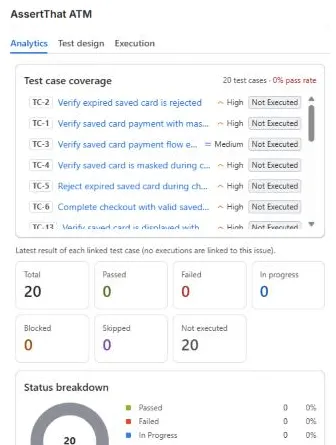
A note under the charts explains where the numbers come from: test runs in the executions linked to this issue or, when no execution is linked, the latest result of each linked test case. Open in AssertThat ATM takes you to the project page.
Test design
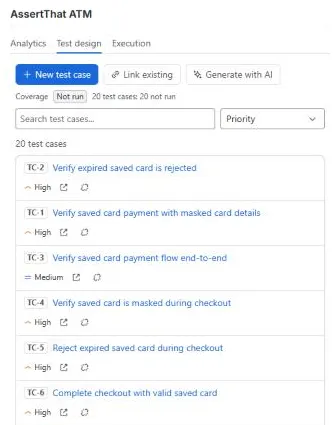
Section titled “Test design”Lists the test cases linked to the issue with their coverage state. Search and filter by priority, Open a case in the project page, or Unlink it (the test case itself is kept).
Execution
Section titled “Execution”Lists executions linked to the issue, with counts per status and passed of total.
Add test cases from the issue
Section titled “Add test cases from the issue”The Test design tab has three buttons:
- New test case creates a case linked to this issue. Give it a title, type (Manual or BDD) and priority, then open it to add steps.
- Link existing finds a case by TC number or title and links it.
- Generate with AI drafts several test cases from the issue (see below).
Generate test cases with AI
Section titled “Generate test cases with AI”- Click Generate with AI.
- Choose How many and the Type (Manual or BDD). Add optional Guidance, such as Focus on negative cases and input validation.
- Click Generate. The AI drafts test cases from the issue’s summary and description.
- Review the drafts. Untick the ones you don’t want, edit titles and priorities, and use View / edit steps or View / edit Gherkin to change the content. Steps use one line per step: action | test data | expected result.
- Choose Save to folder and click Save selected.
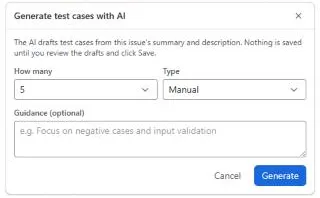
Nothing is saved until you click Save. Saved cases are linked to the issue.
Defects found in testing
Section titled “Defects found in testing”When a bug is raised from a failed step or an exploratory note, its issue panel shows a Found in section linking back to the execution and test case where it was found. That closes the loop from requirement, to test, to run, to defect.
Traceability across the project
Section titled “Traceability across the project”- Analytics has User story → test traceability, Traceability matrix and Coverage gaps charts. See Analytics and reports.
- Insights › Release readiness shows every requirement of a fix version with its coverage state. See Insights.
- JQL:
issue in atmCoverage("UNCOVERED")finds stories with no tests, andissue in atmDefects()finds bugs raised from test runs. See JQL functions. - Executions can be linked to issues too, for example a release ticket, under Linked issues on the execution.