

Update Individual Scenarios with AI
AssertThat allows you to use AI to regenerate the steps of any individual scenario directly from the issue view. This can be used on both manually created and AI-generated scenarios. The AI uses the existing scenario title and the user story details as context to produce updated steps, which you can then review and accept or reject before any changes are saved.
💡 Human in the loop — regenerated steps are never saved automatically. You must explicitly accept or reject each change before it is applied.
Prerequisites
Section titled “Prerequisites”Before using AI step regeneration, ensure that:
-
AI has been enabled globally — see API Keys Management for AI Providers (add link)
-
AI scenario generation has been enabled for your project — see Enabling AI on a Project (add link)
Step 1: Click the AI Generate Steps Button
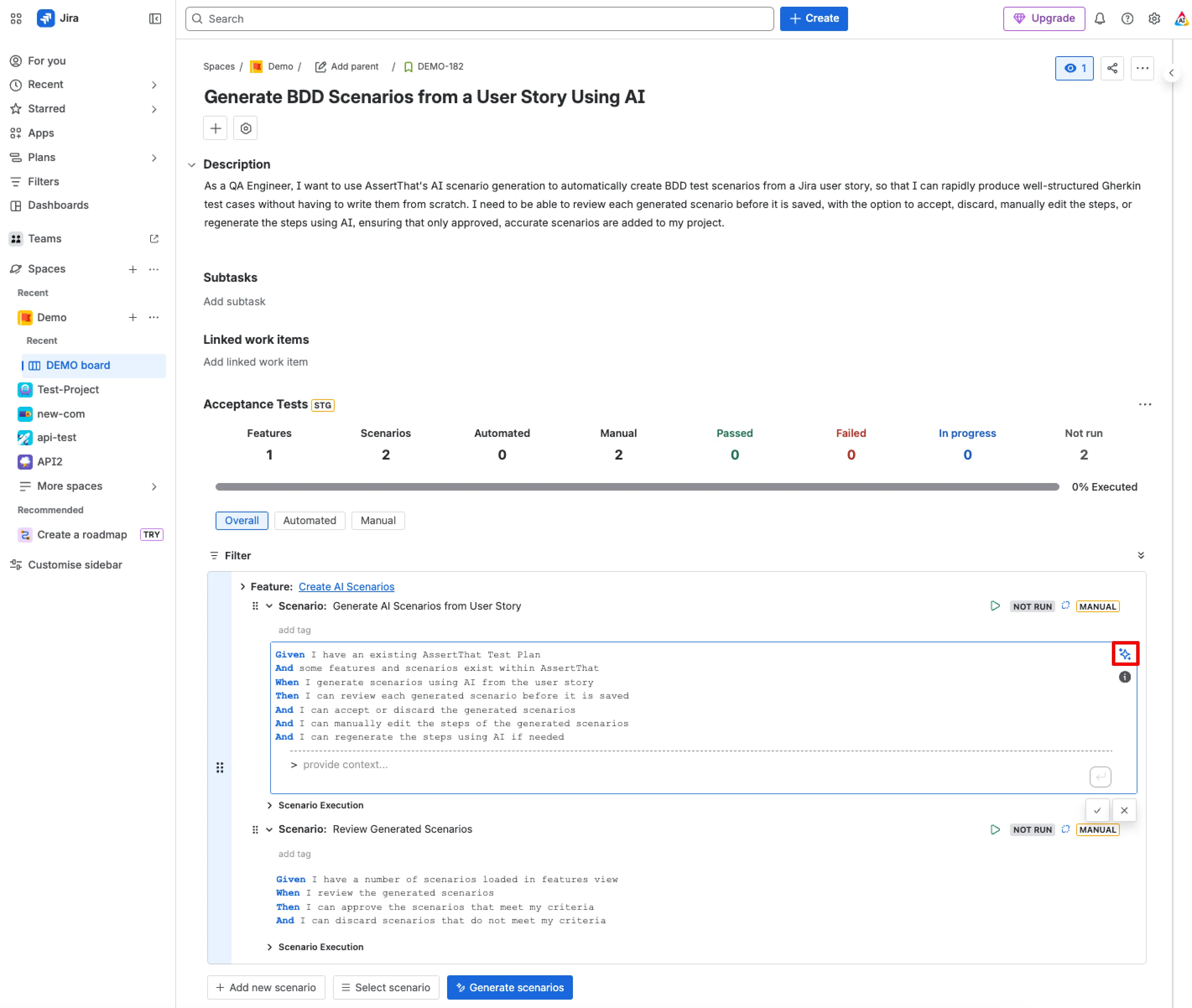
Section titled “Step 1: Click the AI Generate Steps Button”Open your Jira issue and locate the scenario you want to update in the Acceptance Tests panel. Click the ✦ AI generate steps icon in the top right corner of the scenario to activate step regeneration.
Step 2: Add Context and Submit
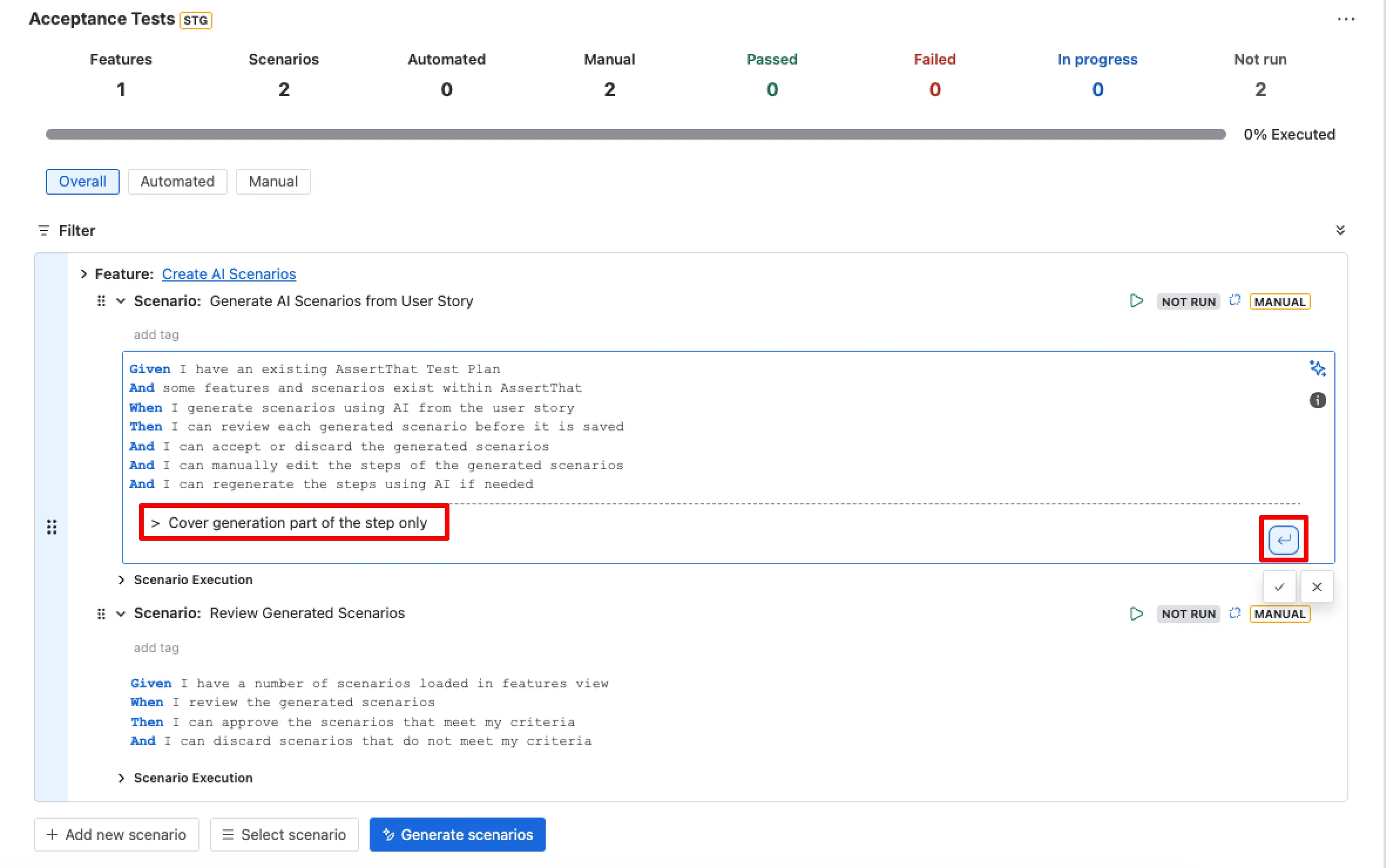
Section titled “Step 2: Add Context and Submit”A context input field will appear at the bottom of the scenario. Use this to guide the AI — for example, specifying that steps should be more prescriptive, focus on a particular condition, or cover only a specific part of the scenario. Once you have entered your context, click the submit button to trigger regeneration.
The context field is optional but recommended. The AI will always use the existing scenario title and user story description as its primary input.
Step 3: Review and Accept or Reject Step Changes
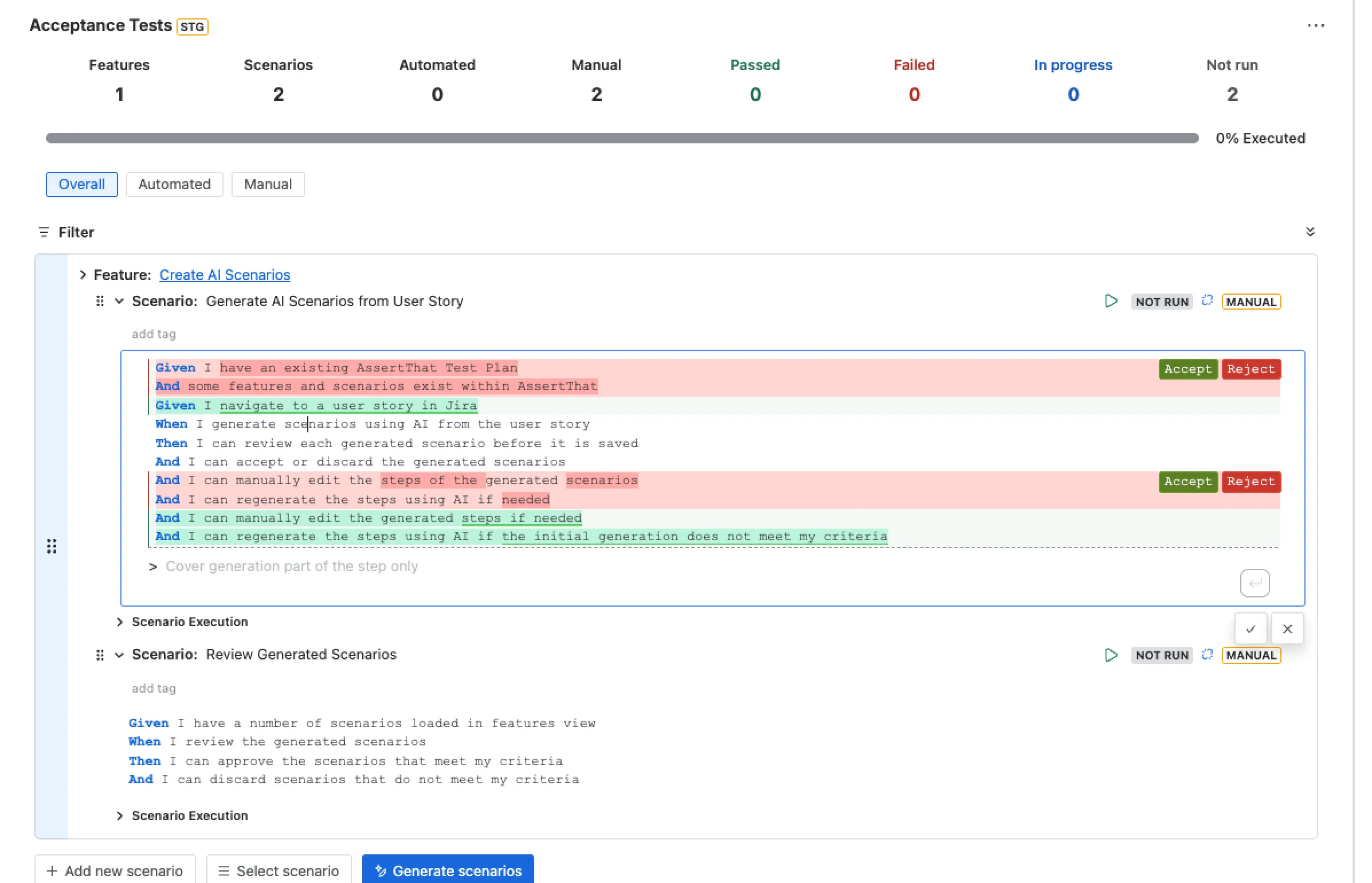
Section titled “Step 3: Review and Accept or Reject Step Changes”Once the AI has regenerated the steps, the updated steps will be displayed alongside the original steps within the scenario. Changes are highlighted so you can clearly see what has been added, removed, or modified. Each changed step has an individual Accept and Reject button, giving you precise control over which changes are applied.
Step 4: Save or Discard All Changes
Section titled “Step 4: Save or Discard All Changes”Once you have reviewed the individual step changes, use the ✓ button to save all accepted changes to the scenario, or the ✗ button to discard everything and revert to the original steps.
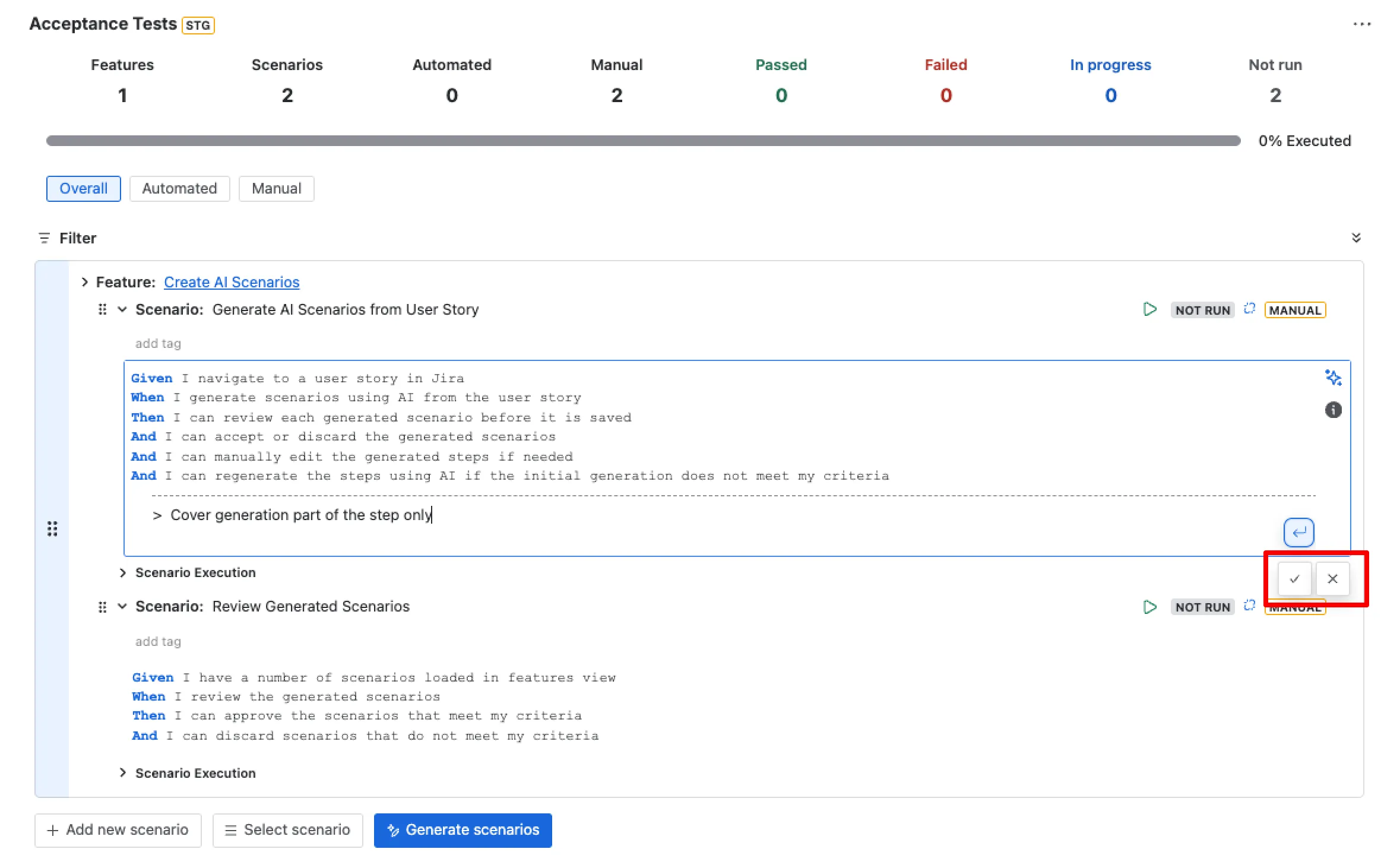
⚠️ If you discard all changes, the scenario will revert to its previous state. You can re-run step regeneration at any time from the same AI generate steps icon.