

Set up AssertThat Test Plan Issue Type
Step 1: Enable AssertThat Test Plan
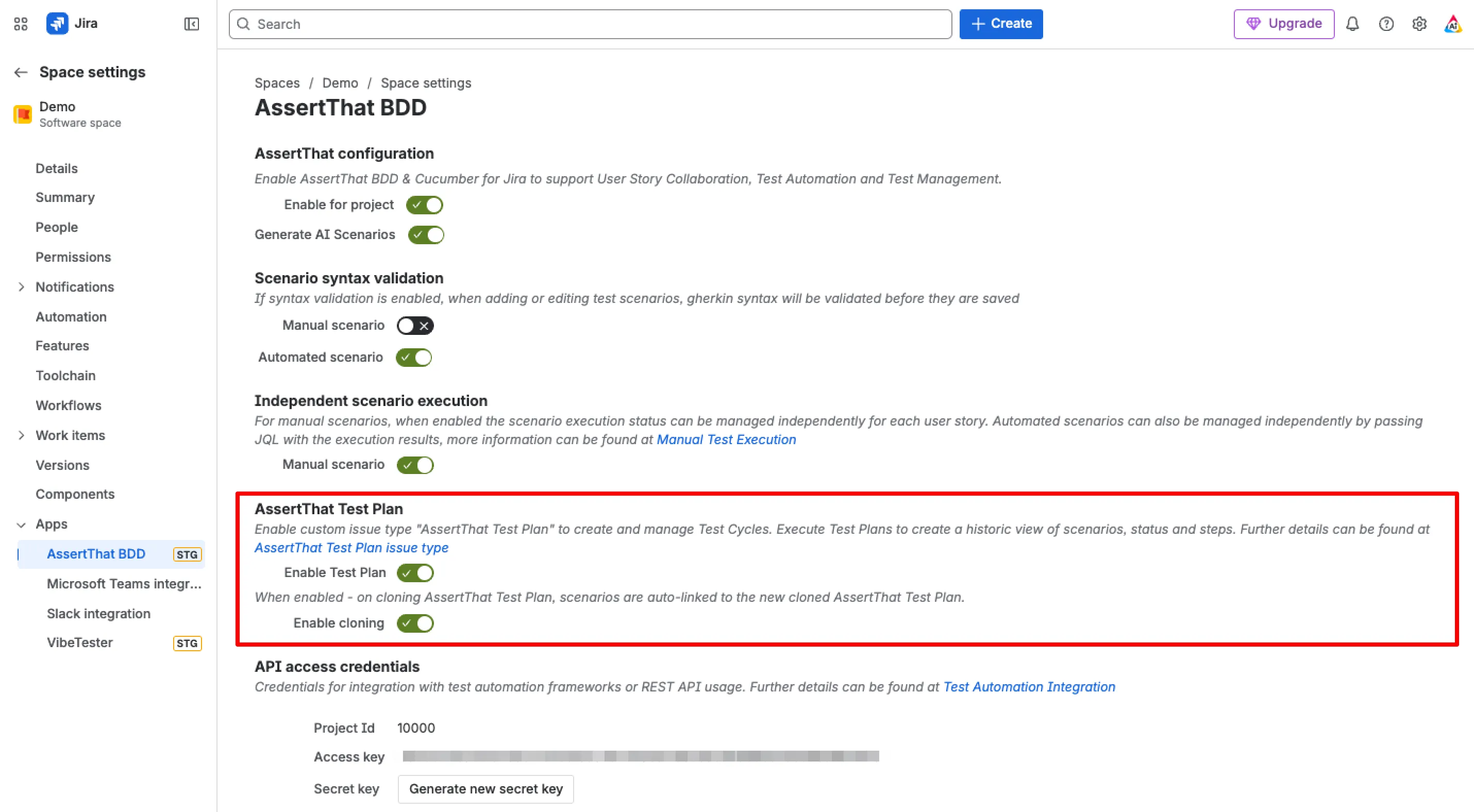
Section titled “Step 1: Enable AssertThat Test Plan”AssertThat Test Plans can be enabled through the AssertThat Configuration pages. From Space Settings → Apps → AssertThat Configuration
Step 2: Configure AssertThat Issue Type
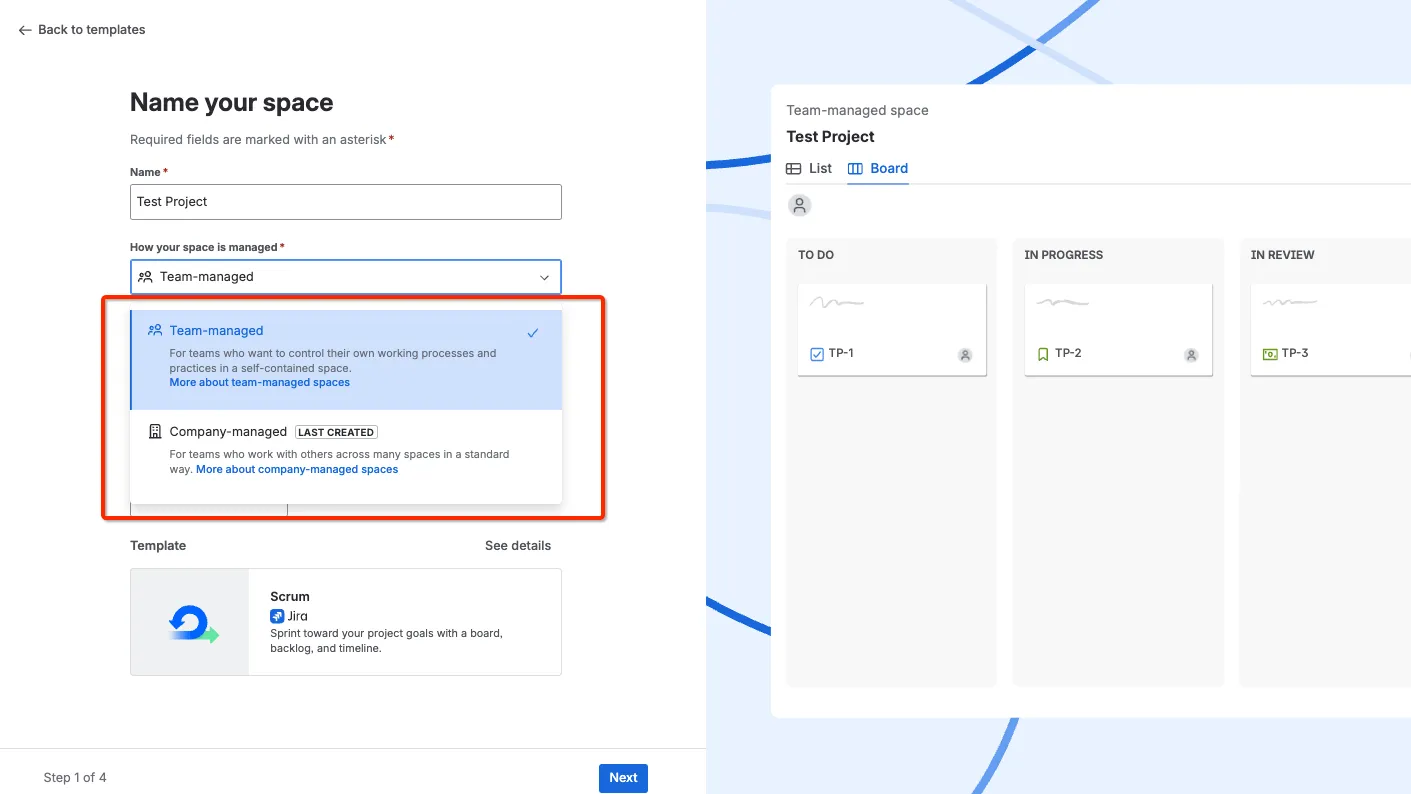
Section titled “Step 2: Configure AssertThat Issue Type”AssertThat Test Plan uses a custom Jira Issue type which will need to be setup and added to your Issue Scheme. The steps required to setup new Issue Types vary depending on the type of Jira Project which will be either:
-
Team-Managed (old Next-Gen Project)
-
Company-Managed (Old Classic Project)
The screenshot below shows the options available when you initially setup a new project.
Step 4.1 - Team Managed (old Next-Gen) Projects
Section titled “Step 4.1 - Team Managed (old Next-Gen) Projects”For Team Managed (old Next-Gen) Projects, the AssertThat Issue types will need to be setup manually.
-
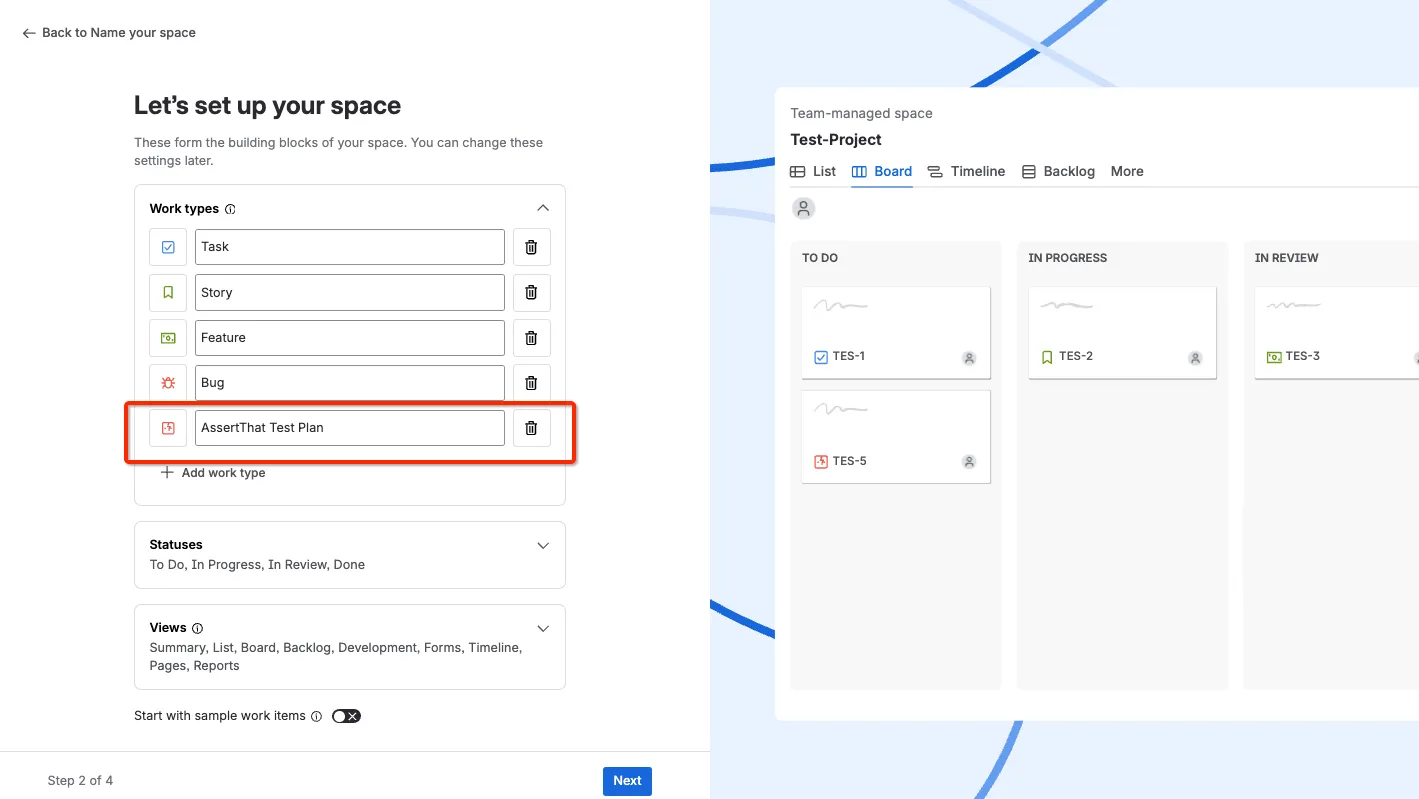
The Jira Space setup workflow allows you to add Issue types as part of the setup. The AssertThat Issue Type description will need to be added as per the below step:
-
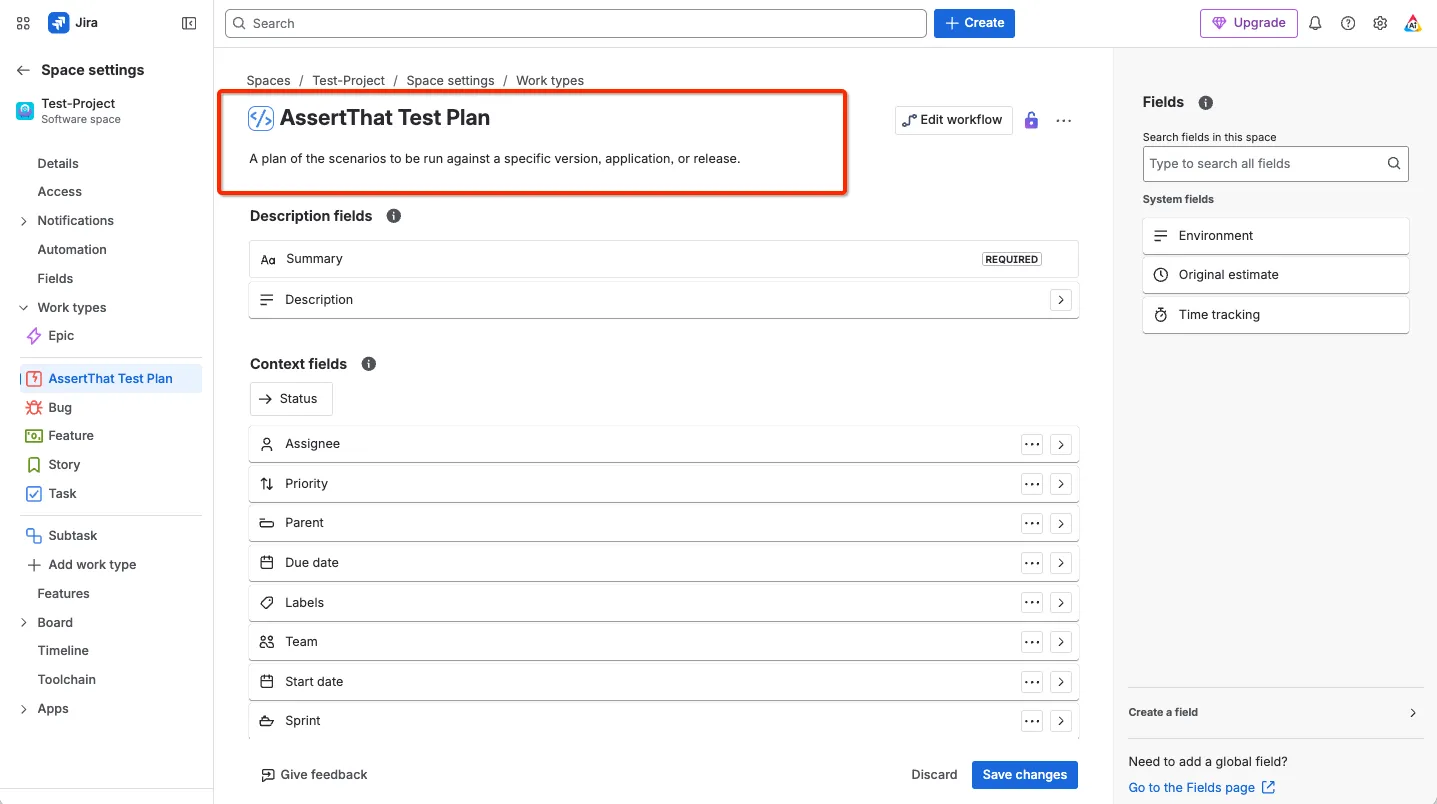
Access the team managed Issue Types page (Space Settings → Issue Types) and add the description and update the icon:
Issue Type | Description |
|---|---|
AssertThat Test Plan | A plan of the scenarios to be run against a specific version, application, or release. |
You can now start using AssertThat Test Plans.
Company-Managed (Old Classic Project)
Section titled “Company-Managed (Old Classic Project)”For Company Managed Projects the AssertThat Issue Type is setup automatically when Test Plans are enabled in AssertThat Configuration page.