

Test design
The Test design tab is your test case repository. Test cases live in a folder tree on the left; each one you open gets its own editor tab on the right, so you can work on several at once.
The project page layout
Section titled “The project page layout”Every tab on the project page (Test design, Test planning, Execution and Analytics) uses the same layout:
- the AI assistant prompt bar at the top of the page (see AI assistant);
- an explorer on the left with folders and items, which you can collapse or resize;
- a workspace on the right with one editor tab per open item. If you close a tab with unsaved changes you are asked to Save and close or Discard and close.
The Audit log button sits on the right of the tab row. If you only have view rights, a Read-only access banner tells you which permission you need to edit.
Every item has a reference ID that never changes: TC-n for test cases, TP-n for test plans, TE-n for executions, RT-n for analytics files and ES-n for exploratory sessions. Use Copy link on any item to share a direct link to it.
Folders
Section titled “Folders”- Click Create folder to add a root folder, or use a folder’s More actions menu to Create subfolder, Create test case, Export CSV, Rename folder or Delete folder.
- Drag folders and test cases to move them. Arrow keys browse the tree; row actions show on hover, focus or selection.
- Deleting a folder moves its test cases to the Archived view, where they can be restored.
Find test cases
Section titled “Find test cases”Click Filters to filter the tree by folder name, test case name, tags, priority, review status and custom fields. The explorer header shows Filtered while a filter is on; Clear filters resets it. You can also ask the AI assistant, for example Show high priority draft test cases.
Create a test case
Section titled “Create a test case”Click Create test case in the explorer toolbar or in a folder’s menu, type a name, and the case opens in the editor. You can also:
- generate cases with AI from the assistant, from a Jira issue or from coverage gaps;
- import them from CSV or
.featurefiles; - Clone test case from a test case’s row menu.
The test case editor
Section titled “The test case editor”The editor header shows the TC reference, the name (click to rename), Save, Copy link and the version selector. Below it:
| Field | What it holds |
|---|---|
| Priority | Critical, High, Medium or Low |
| Status | Draft or Ready, plus any custom test case statuses |
| Type | Manual (steps), BDD (Gherkin) or Generic (narrative). See Test case formats |
| Automation key | Matches results imported from CI, for example the JUnit classname.name. See CI import |
| Tags | Free labels. Type a new value to create it |
| Description and Preconditions | Rich text |
| Custom fields | Fields your project administrator has defined |
| Linked issues | The Jira requirements this case covers. Search and link issues or + Create linked issue |
| History | Who changed what and when, newest first |
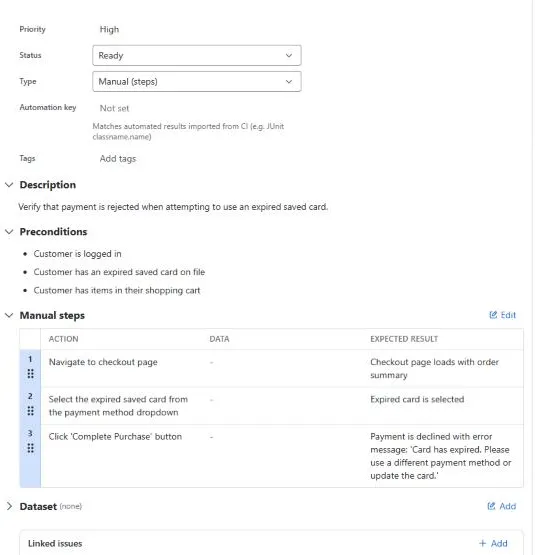
Changing the Type converts the content between formats (for example manual steps to Gherkin). If the case already has execution runs, the conversion is saved as a new version so past results stay intact.
When Insights finds that a case looks like existing ones, the editor shows This test case looks similar to existing ones with a link to compare, or Dismiss. Quarantined flaky cases show a Quarantined badge. See Insights.
Archive and restore
Section titled “Archive and restore”Deleting a test case moves it to Archived in the explorer. From there you can Restore selected, or a project administrator can Delete permanently after typing DELETE to confirm. Archived cases disappear from the explorer, plans and new executions, but existing execution results are kept.
In this section
Section titled “In this section”- Test case formats: manual steps, shared steps, datasets, BDD and generic
- Versions and reviews
- Bulk actions
- Import and export: CSV,
.featurefiles and migrating from other tools