Writing BDD scenarios takes time. Anyone who has sat down to convert a backlog of user stories into well-structured Gherkin test cases knows the drill — it’s important work, but it’s also repetitive, and it pulls QA engineers away from the higher-value thinking that actually improves test coverage.
We’ve been thinking about this problem for a while, and we’re excited to share what we’ve built. AI test case generation is part of a significant upgrade to the plugin including the migration of the plugin to Atlassian Forge platform.
AssertThat BDD now includes AI-powered test case generation, available directly from the Jira issue view. You can generate a full set of BDD scenarios from a user story in seconds, review and refine them, and accept only what meets your standards — all without leaving Jira.
Currently AI Scenario generation is available on cloud, you can find the latest version of the plugin on the Atlassian Marketplace.
It’s Not Just Generation — It’s a Workflow
A lot of AI tooling stops at generation. You get output, and then you’re on your own figuring out what to do with it. We wanted to build something that fits into how QA teams actually work.
That’s why we designed the feature around a human-in-the-loop approach. Nothing gets saved to your project automatically. Every generated scenario comes through a review step where you decide what stays, what goes, and what needs a bit of work first.
It sounds like a small thing, but it matters. AI-generated test cases aren’t always perfect on the first pass. Keeping a human checkpoint in the process means your test suite stays accurate and intentional, not just large.
Under the Hood
The generation isn’t a single prompt-and-response. AssertThat uses a multi-stage agentic workflow — an Author drafts the scenarios, a Critic evaluates them for quality and consistency, and a Rewriter refines them before they’re presented to you. It takes a few seconds longer than a simple generation, but the difference in output quality is noticeable.
How AI BDD Test Case Generation Works
Getting started is straightforward. Once AI is enabled for your project, open any Jira issue and click ✦ Generate scenarios in the Acceptance Tests panel.
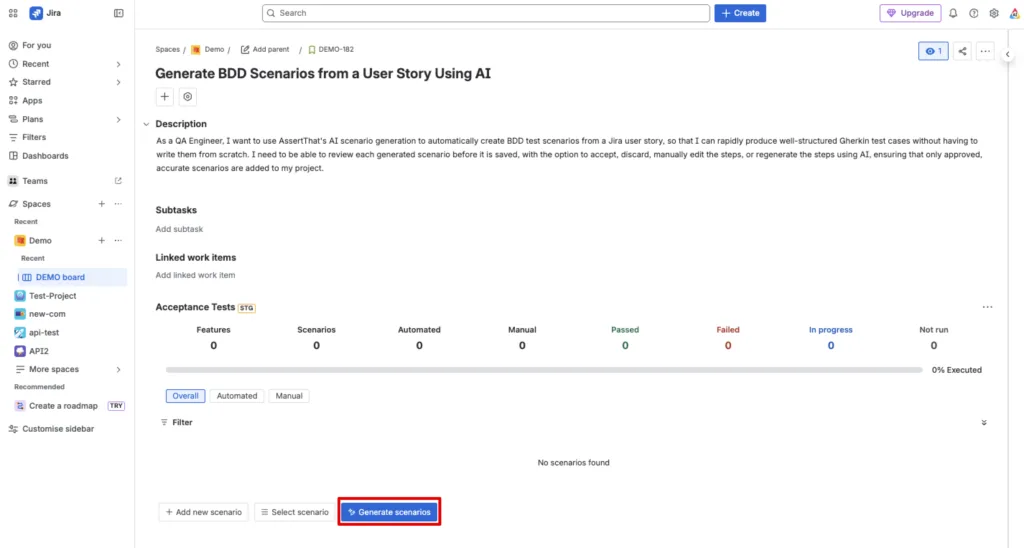
You’ll be asked to provide a feature name — either create a new one or link to an existing feature — and optionally add some context to guide the output. Want positive scenarios only? Focused on a specific edge case? Put it in the context field and the AI will factor it in.
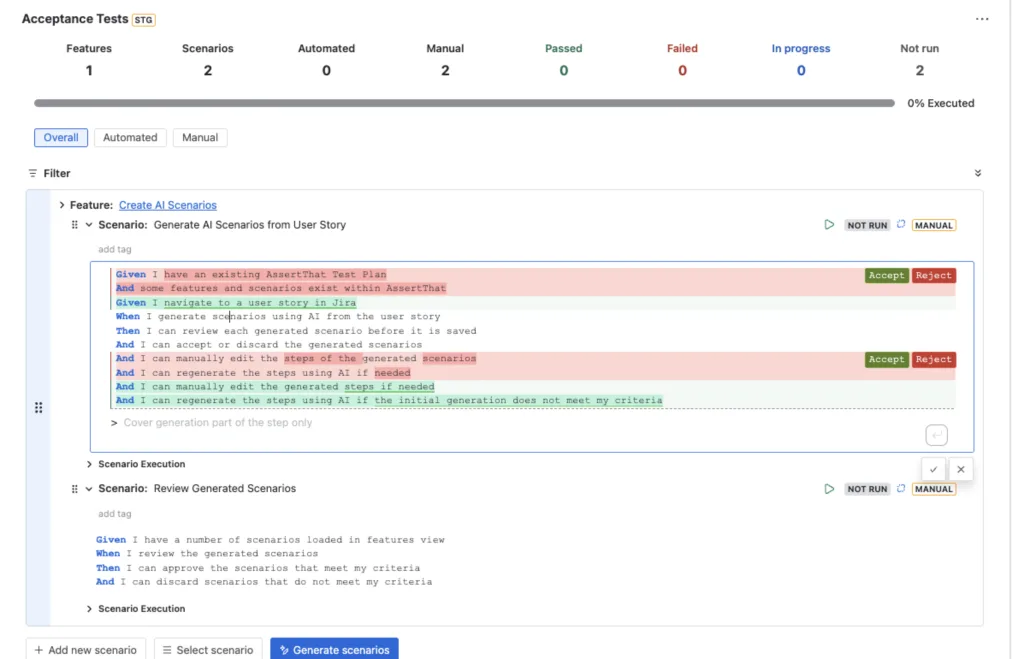
Once generated, your scenarios appear in the panel grouped under the feature you specified. Each one shows the full set of Gherkin steps and gives you three options:
Accept it — happy with it as-is, click Accept and it’s saved to your project.
Edit it manually — click into the steps, make your changes inline, then accept the edited version.
Regenerate the steps with AI — not quite right but close? Use the AI step regeneration option on the individual scenario. Add a bit of context, hit submit, and the AI rewrites the steps. You can then accept or reject each individual step change before saving.
That last option is particularly useful when a scenario has the right intent but the steps are too vague, too broad, or just need tightening up.
Not Just for New Scenarios
The AI step regeneration isn’t limited to newly generated scenarios. You can use it on any existing scenario in your project — including ones you wrote manually. If your requirements have shifted or you want to revisit how a scenario is structured, it’s a quick way to get a fresh perspective without starting from scratch.
Who Gets Access
AI scenario generation is available to all AssertThat users. If you’re on the Advanced plan, you get access to the AssertThat unlimited AI model straight away — no API key needed. If you’re on the Standard plan, you can connect your own AI provider. AssertThat integrates with OpenAI, Claude (Anthropic), and Azure OpenAI, so you can use whichever you already have access to.
Plans can be upgraded or downgraded at any time, so it’s easy to try the Advanced model and see if it works for your team.
Getting Set Up
AI needs to be enabled at two levels — globally by a Jira admin, and then on a per-project basis by a project admin. Full setup instructions are in our documentation, and the per-project toggle is a single switch in your AssertThat space settings, so it won’t take long.
If you’re already using AssertThat BDD, the feature is available now. Give it a try on a user story you’ve been putting off writing scenarios for — we think you’ll find it a useful addition to how your team works.
Let me know if you want the tone adjusted anywhere, or if you’d like a shorter punchy intro instead of the current opening.