

Getting started
AssertThat Autonomous Test Management runs entirely on Atlassian Forge inside Jira Cloud. There is nothing to host and no API key to configure: the AI features use Atlassian’s own hosted models.
Install the app
Section titled “Install the app”- Open the Atlassian Marketplace listing and click Try it free, or install it from Jira settings › Apps › Explore more apps.
- Pick your Jira Cloud site and approve the requested permissions.
On install the app switches itself on for the whole site and for every project that exists at that moment, so most teams can start straight away.
Where to find the app in Jira
Section titled “Where to find the app in Jira”In Jira the app is labelled AssertThat ATM. Jira Cloud now calls projects spaces, so project settings appear as Space settings.
| Where | What it is for |
|---|---|
| AssertThat ATM tab in the project’s navigation (next to Summary, Backlog and Board) | The main project page: Test design, Test planning, Execution, Analytics and Insights, plus the AI assistant |
| Apps › AssertThat ATM (top navigation) | Lists your recent projects so you can jump into one |
| Issue view › AssertThat ATM panel | Coverage, linked test cases and executions for that issue, and AI test generation. See Jira issue panel |
| Space settings › Apps › AssertThat ATM | Turn the app on or off for the project, permissions, review workflow, custom fields and statuses. See Project settings |
| Jira settings (⚙) › Apps › AssertThat ATM | Site-wide switch, AI usage, CI import keys, audit retention and API keys. See Global settings |
| Avatar › Personal settings › AssertThat API keys | Your own API keys for scripts and MCP. See Rovo, MCP and REST API |
| Dashboards › Add gadget › AssertThat test reports | Release readiness, execution progress and coverage on a Jira dashboard |
| Rovo chat › AssertThat ATM agent | Manage tests in natural language from Rovo |
Enable a project
Section titled “Enable a project”If a project was created after the app was installed, or the app was switched off for it:
- Open the project and go to Space settings › Apps › AssertThat ATM.
- On the General & permissions tab, switch on Enable AssertThat Test Management.
Only Jira administrators and project administrators can change project settings. A Jira administrator can also switch the app off for the whole site under Jira settings › Apps › AssertThat ATM › Enable plugin globally.
Your first ten minutes
Section titled “Your first ten minutes”A typical first run looks like this:
- Create a folder. In the Test design tab, create a root folder such as Checkout.
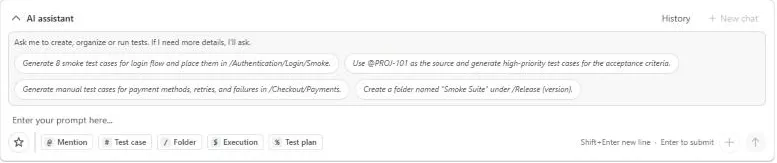
- Create test cases. Add one by hand, or type a request into the AI assistant at the top of the page, for example: Use @SHOP-12 as the source and generate high-priority test cases for the acceptance criteria in /Checkout. You can also import a CSV or .feature files.
- Link requirements. Link each test case to the Jira stories it covers, so coverage shows up on the issue and in reports.
- Plan. In Test planning, group the cases into a test plan such as Sprint 42 regression.
- Run. In Execution, create an execution from the plan and record step results. Raise a Jira bug straight from a failed step.
- Report. Open Analytics for charts, or Insights to check whether a fix version is ready to release.
Who can do what
Section titled “Who can do what”Access follows Jira project permissions. By default:
- anyone who can browse the project can view test cases, plans, executions, reports and history;
- people who can edit issues can change test design and planning, and run tests;
- project administrators can permanently delete archived items and export the audit log.
A project administrator can change these rules. See Permissions.
Languages
Section titled “Languages”The app follows each user’s Jira language. It is available in English (US and UK), German, Spanish and French.